The problem
Desk walking needs tiny speed changes at exactly the moments when phone or remote control is most disruptive.
The annoying part is usually not changing speed once. It is doing it over and over while your hands, eyes, and attention belong on the Mac.
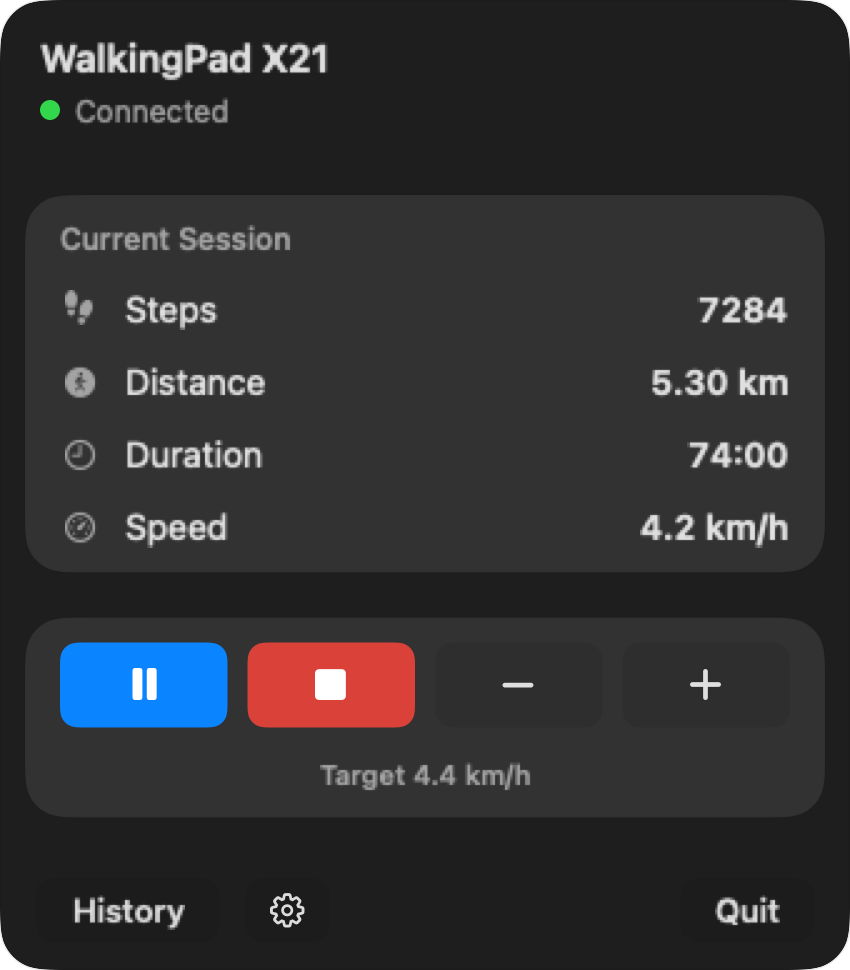
Desk walking needs tiny speed changes at exactly the moments when phone or remote control is most disruptive.
You slow down before a dense paragraph, speed up during admin work, pause for a call, then restart. Those changes should feel like desktop commands, not like operating a separate device.
Paceora can make ordinary speed changes easier on a supported model. If the belt changes speed unexpectedly, slips, or feels unsafe, stop using the treadmill and seek hardware support.
If the belt behaves normally, check compatibility and try Paceora. If speed changes unexpectedly or the belt slips, stop using the treadmill and contact hardware support.
When the belt behaves normally, Paceora can move repeated speed adjustments from the phone or remote to the Mac. It cannot diagnose or repair sudden or erratic belt behavior. Stop using the treadmill and contact hardware support in those cases.
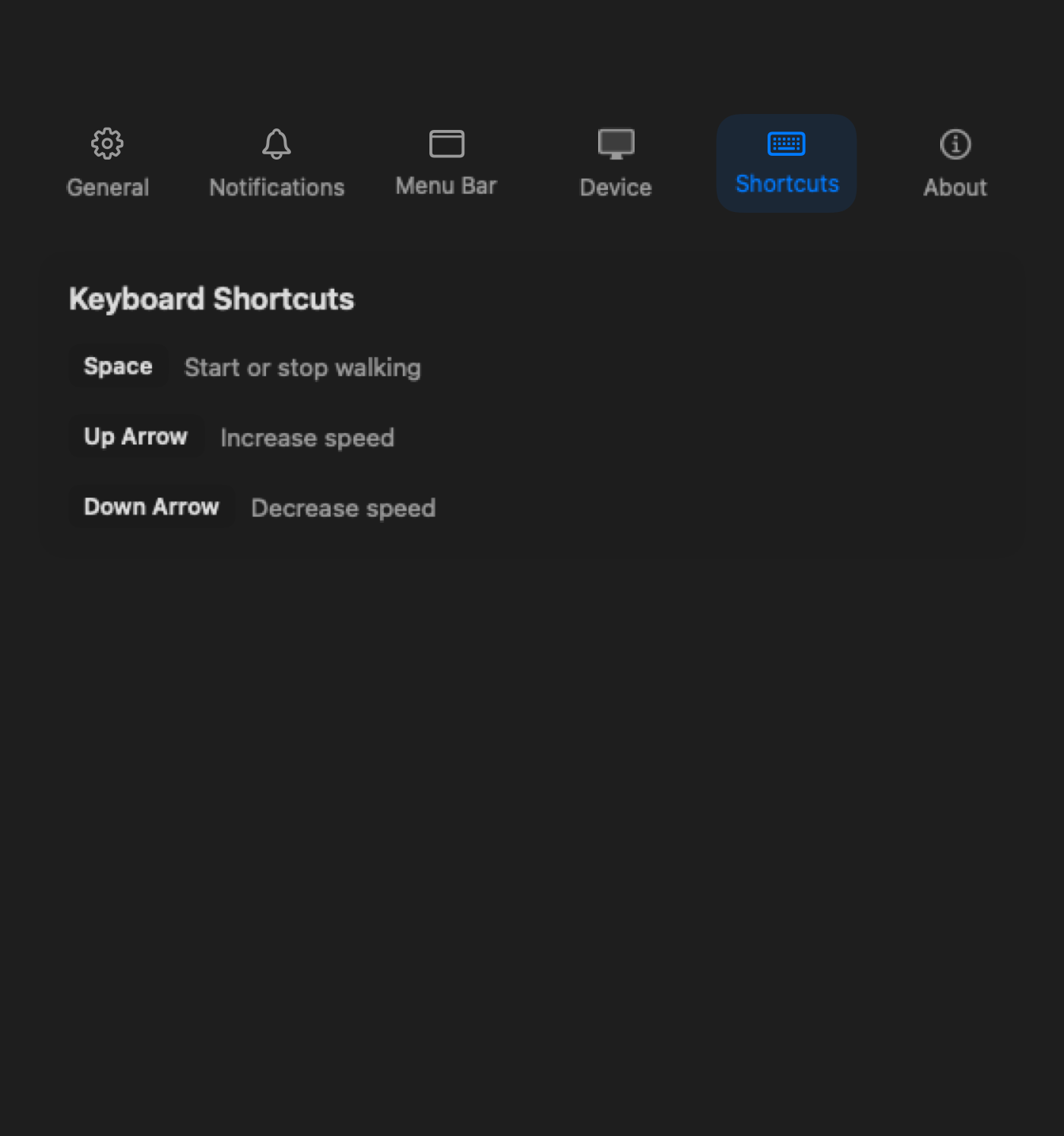
Pause or change speed without leaving the document or app in front of you.
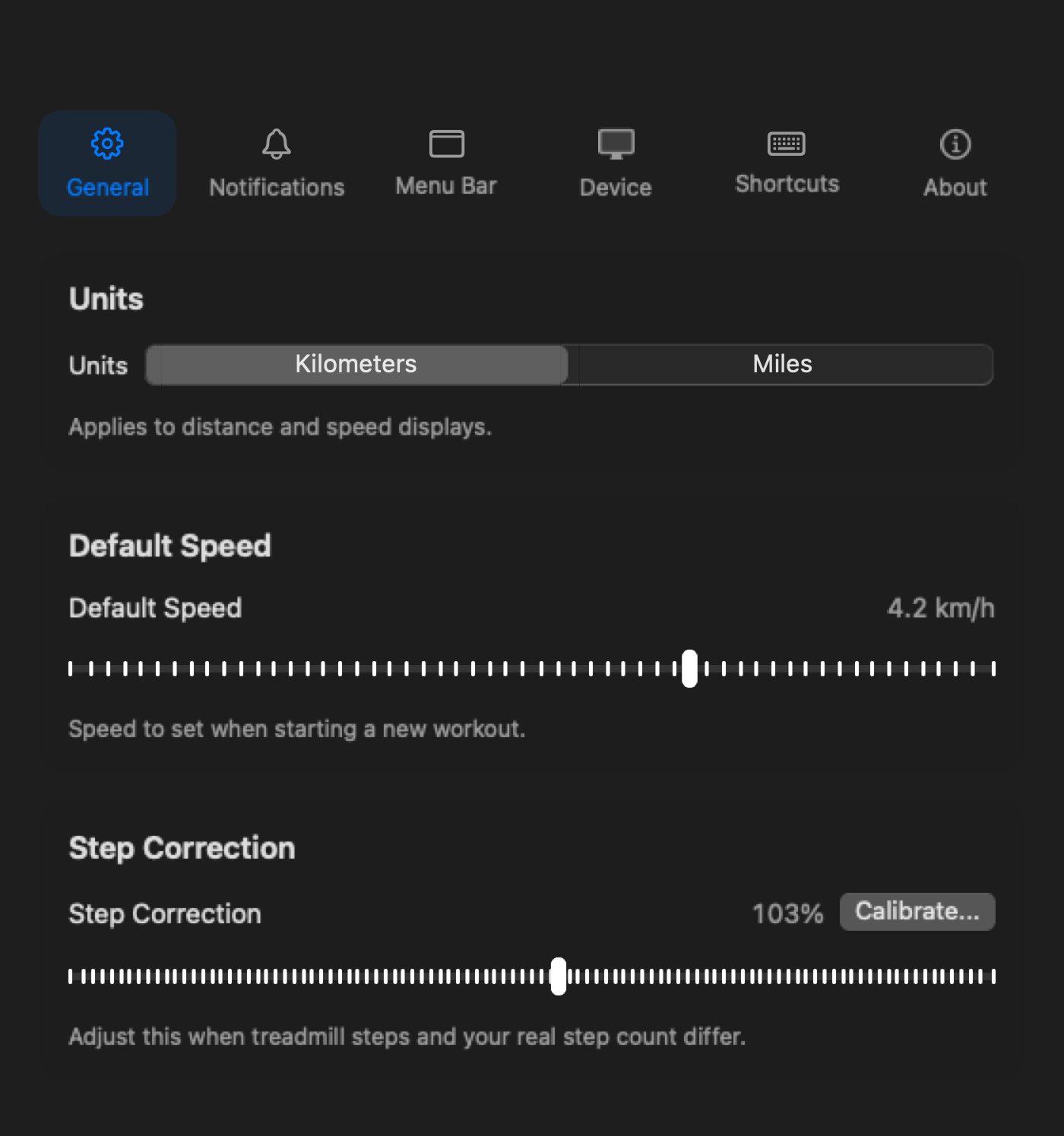
Keep speed and control state visible without opening a phone.
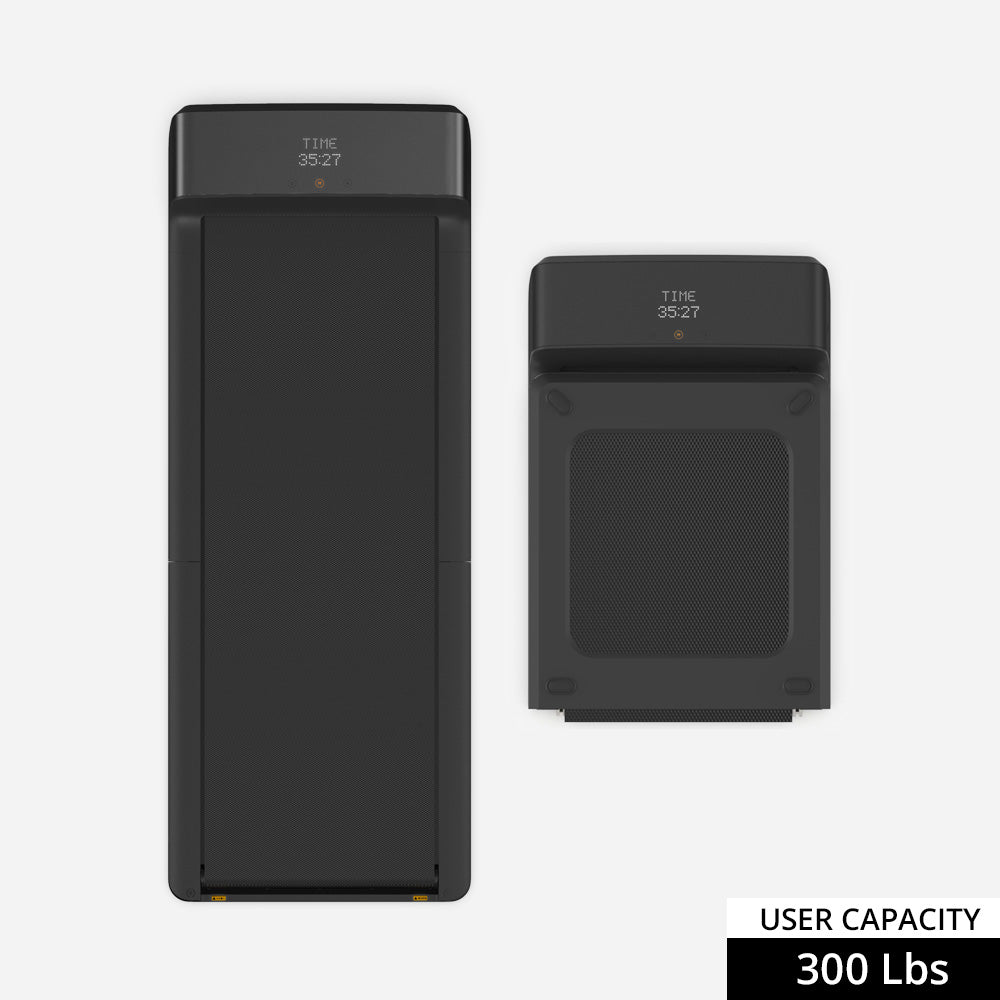
Compare the A1 Pro first for frequent low-speed desk sessions. Paceora can control supported sessions from the Mac.
Compare the C2 when short sessions and easy storage matter more than a wider deck.
Skip both if the belt speed is mechanically unreliable or if you mainly want structured workout intervals.
Yes, on supported models. Paceora provides keyboard and menu bar controls for ordinary desk-walking adjustments.
It handles ordinary speed changes. It does not calibrate or repair a treadmill with mechanical speed faults.
No. Paceora is strongest for low-speed desk walking, not workout programming.
If the belt behaves normally, check compatibility and try Paceora. If speed changes unexpectedly or the belt slips, stop using the treadmill and contact hardware support.