Broken remote? Control your WalkingPad from your Mac.
Keep walking. Your Mac can take over.
Paceora puts start, stop, speed, and walking history in your Mac’s menu bar when the original remote is broken, missing, or unreliable. Check your model before you buy.
“My remote finally broke, and this fixed it! Thank you.”
- One-time purchase No subscription
- No Paceora account History stays on this Mac
- Independent and unofficial Check compatibility first
Will Paceora work with my WalkingPad?
Pick your model and what is going wrong. You will see whether Paceora can help before you buy.
Choose your model and situation.
You will get a clear next step for a remote problem, connection problem, unsupported model, or hardware failure.
Support can also depend on firmware, macOS 13 or later, and Bluetooth behaviour on this Mac.
Connect once. Walk from your Mac.
Choose your nearby WalkingPad, control the walk from the menu bar, and Paceora will save the finished session on your Mac.
- 01Connect
Choose a powered-on supported WalkingPad nearby.
- 02Control
Start, change speed, and stop from the menu bar.
- 03Review
Find the finished session in your walking history.
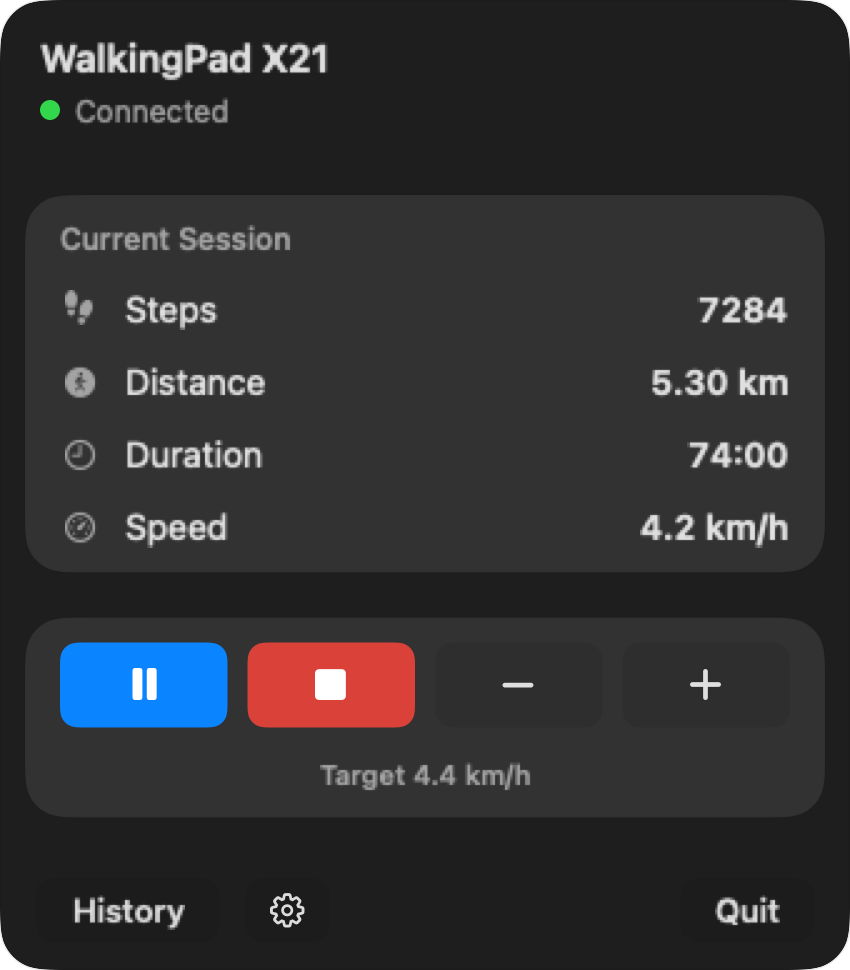
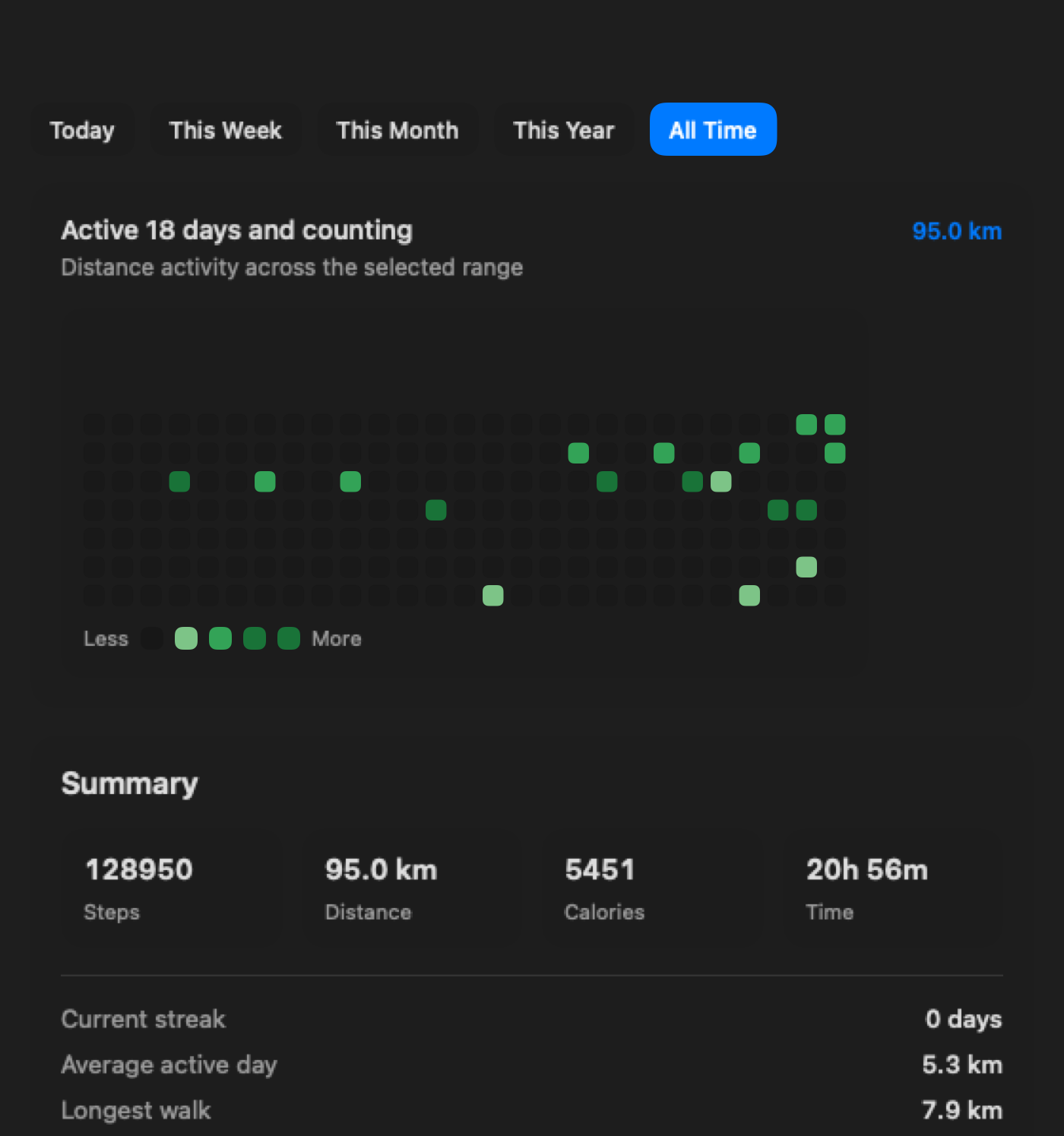
Supported WalkingPads.
Paceora supports these five models today. Run the compatibility check on this Mac before you buy.
Questions before you buy
Can Paceora replace my broken WalkingPad remote?
Yes, if your WalkingPad is supported, still powers on, and can connect over Bluetooth. Paceora gives you the everyday controls on your Mac; it does not repair the remote or the treadmill.
Which WalkingPad models are supported?
Paceora currently supports the WalkingPad C2, A1 Pro, R1 Pro, X21, and X25. Support is model-specific and does not extend to every WalkingPad or KingSmith product.
How do I check compatibility before buying?
Choose your model and situation in the checker above. For extra confidence, run the live Bluetooth check in desktop Chrome before you open the Mac App Store.
Does Paceora work if the treadmill itself is broken?
No. If the treadmill will not power on or no controller can reach it, contact WalkingPad or KingSmith hardware support. Paceora is not a mechanical or electrical repair tool.
Does Paceora require the KS Fit application?
No for normal control. Keep KS Fit around for firmware updates, first-time setup, and anything that needs official manufacturer support.
Do I need an account, and where is my walking history stored?
You do not need a Paceora account. Your walking history stays on your Mac instead of being copied into a separate Paceora customer database.
Is Paceora a subscription?
No. Paceora is a $9.99 one-time purchase on the Mac App Store.
What does my Mac need?
Paceora needs macOS 13 or later, working Bluetooth, and permission to connect to nearby devices.
Is Paceora affiliated with WalkingPad or KingSmith?
No. Paceora is an independent, unofficial application and is not affiliated with or endorsed by WalkingPad or KingSmith.
What should I do if my model is not supported?
Do not buy Paceora for that model yet. Ask about model support, or contact WalkingPad or KingSmith if the problem is mechanical or electrical.
Get control of your WalkingPad back.
Check the supported model and this Mac first. Paceora is $9.99 once, requires macOS 13+, and has no subscription.